MarkeMark
Make markdown files not a pain in the ass.
Markdown files are everywhere now — Claude Code, GitHub, docs, notes. macOS barely knows what to do with them. MarkeMark previews them in Finder, prints them properly, and lets you edit the rendered view like a document.
Download for macOS v1.6 · macOS 13+The two killer features
Quick Look for .md files
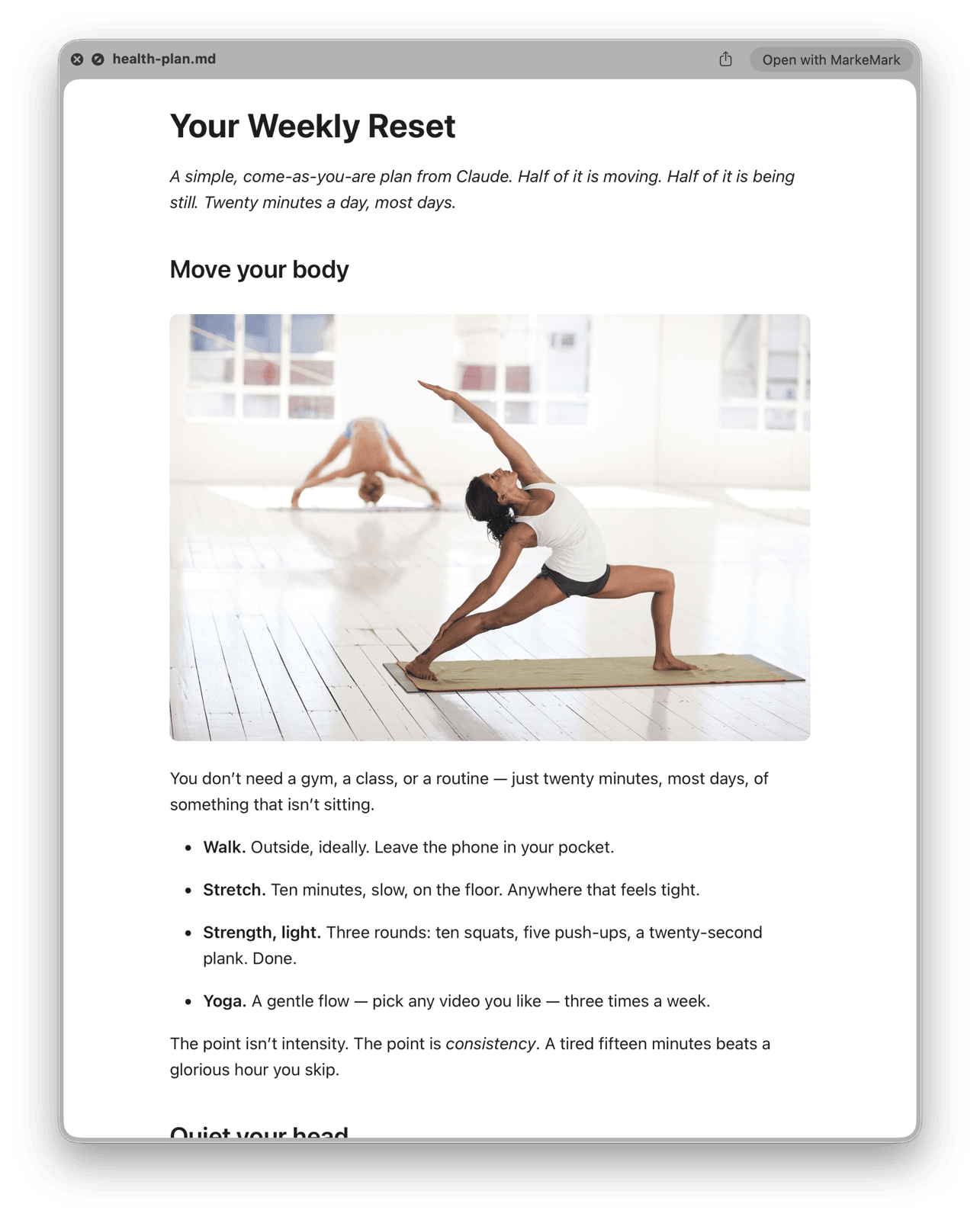
Select any .md or .markdown file in Finder. Press Space. You get a beautifully rendered preview — headings, code blocks, tables, the works. No app to open, no setup. It just works.
Print & PDF that actually works
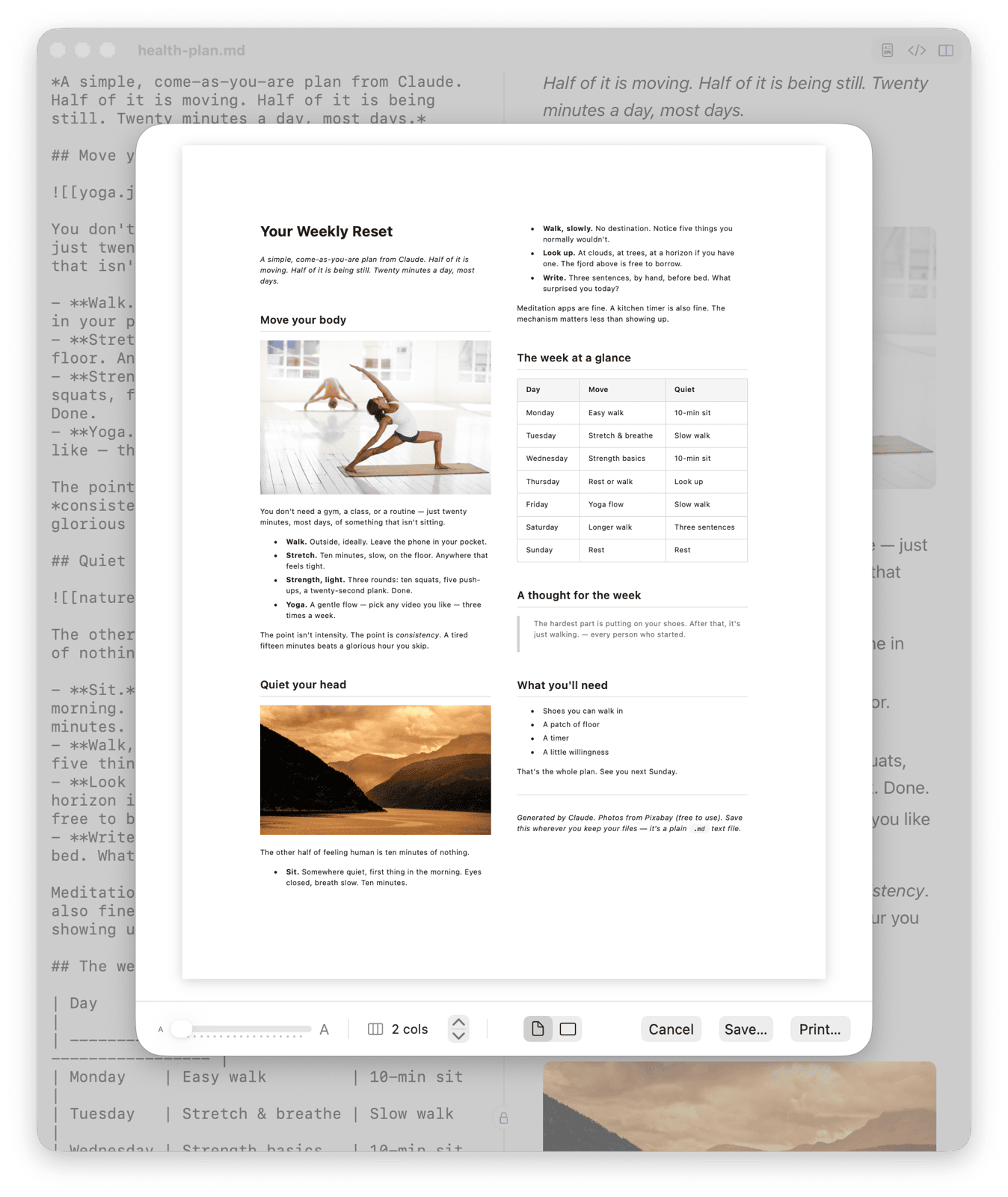
Cmd+P opens a live print preview with 1–9 columns, portrait or landscape, and a zoom slider that reflows text across the page as you drag. Print to paper or save as PDF from the same sheet. Perfect for checklists, schedules, and reference cards that need to fit on one page.
A real editor when you need one
Split-Pane Editing
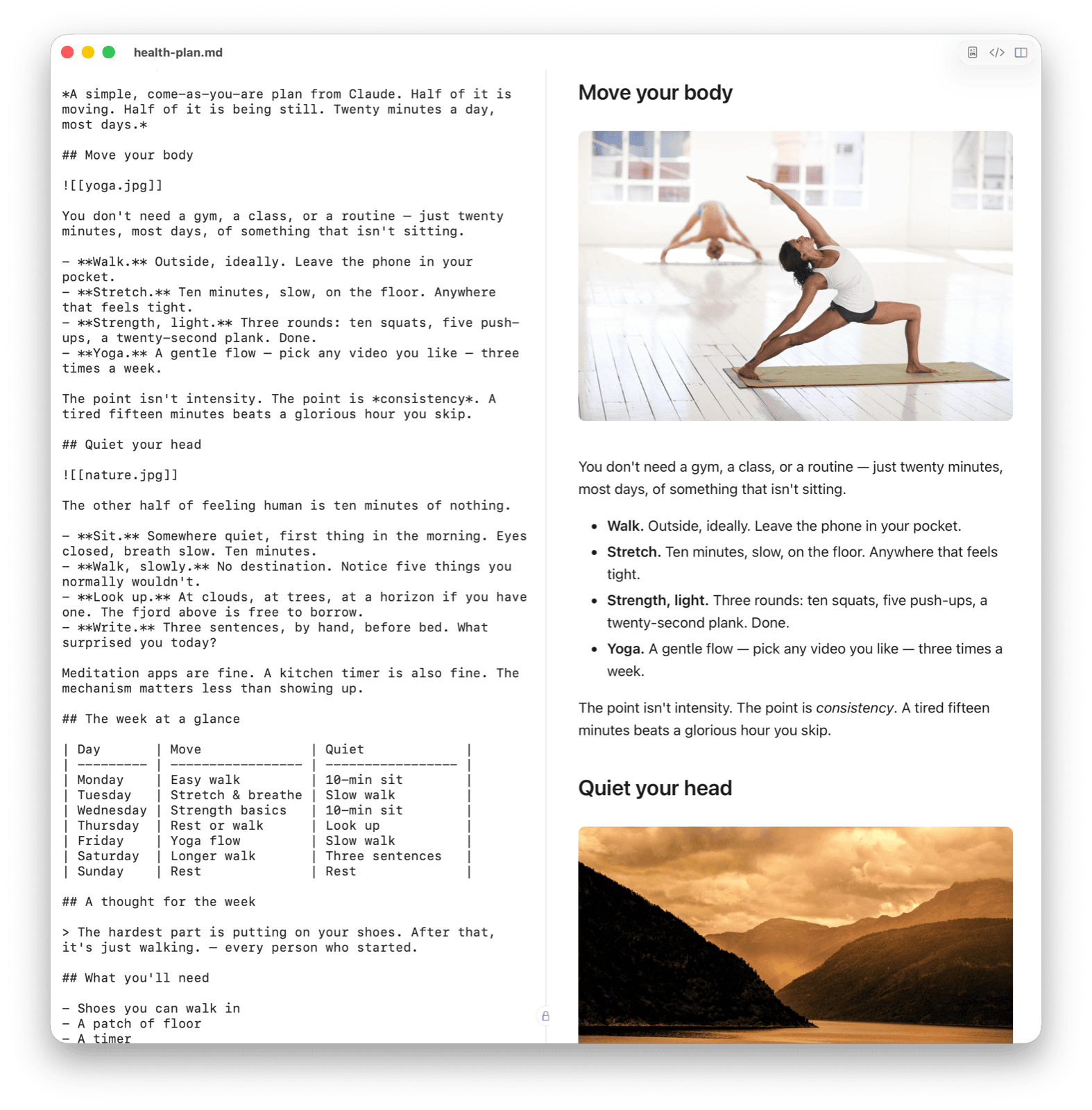
Raw markdown on the left, rendered preview on the right. Three view modes — split, editor-only, or preview-only. Switch with Cmd+1/2/3.
Edit Either Side
Type markdown or edit the rendered preview directly. Changes sync both ways automatically. Like magic, but it's just good engineering.
Everything else you'd expect
Format Shortcuts
Cmd+B, Cmd+I, Cmd+K — from either pane
Syntax Highlighting
Code blocks look great. Fully offline.
Export to HTML
Standalone HTML file with all your styles baked in
Dark Mode
Follows your system, or set it yourself
What's New
- Inline images just work — no banner, no folder prompt. The main app reads sibling images directly, so
![[yoga.jpg]]andrender the moment you open a.mdfile - Quick Look shows images for any
.mdin a folder you've opened at least once in MarkeMark — opening any file in a folder silently pre-caches the folder's images for the Quick Look extension - First-time access to Desktop / Documents / Downloads surfaces a standard macOS privacy prompt. Approve once per folder; after that, MarkeMark reads those locations transparently
- Build 10 delivers the UX win Build 7 promised without Build 7's Quick Look regression — sandbox comes off the main app only, the Quick Look extension stays sandboxed (which macOS requires for registration)
Frequently Asked Questions
How do I install MarkeMark?
- Download the DMG file using the button above.
- Open the DMG — you'll see the MarkeMark app.
- Drag MarkeMark into your Applications folder.
- Double-click to launch. If macOS says the app is from an identified developer, click Open — the app is signed and notarized by Apple.
How do I set up Quick Look for markdown files?
No setup needed. MarkeMark includes a built-in Quick Look extension that activates automatically once the app is in your Applications folder.
To use it: select any .md or .markdown file in Finder and press Space. You'll see a fully rendered preview with syntax highlighting, proper headings, lists, code blocks, and more — all without opening the file.
The preview respects your system's light/dark mode automatically.
Quick Look isn't working for my markdown files. What do I do?
Try these steps:
- Make sure MarkeMark is in
/Applications(not Downloads or Desktop). - Open MarkeMark at least once so macOS registers the extension.
- Check System Settings > Privacy & Security > Extensions > Quick Look and make sure MarkeMark is enabled.
- If another app is handling markdown Quick Look previews, you may need to disable its extension first.
- As a last resort, restart Finder: hold Option, right-click the Finder icon in the Dock, and choose Relaunch.
What file types does MarkeMark support?
MarkeMark opens and edits .md, .markdown, and .txt files. The Quick Look extension previews .md and .markdown files in Finder.
What are the system requirements?
macOS 13 (Ventura) or later. MarkeMark is a universal binary that runs natively on both Apple Silicon and Intel Macs.
Is MarkeMark free?
Yes, MarkeMark is completely free.
Can I edit the rendered preview directly?
Yes! This is one of MarkeMark's standout features. Click into the preview pane and edit the rendered text directly — bold, add links, change headings. Your changes automatically sync back to the raw markdown. You can also go the other direction: edit the markdown and see the preview update live.
What keyboard shortcuts are available?
- Cmd+1 — Preview only
- Cmd+2 — Editor only
- Cmd+3 — Split view
- Cmd+B — Bold
- Cmd+I — Italic
- Cmd+K — Insert link
- Cmd+F — Find
- Cmd+Z / Cmd+Shift+Z — Undo / Redo
All formatting shortcuts work from either pane.
How do I export to PDF or HTML?
Go to File > Export PDF or File > Export HTML in the menu bar. The PDF export renders your markdown with full styling, and the HTML export gives you a standalone HTML file.
Does it work offline?
Yes, completely. MarkeMark is a native macOS app with no internet dependency. Syntax highlighting (powered by highlight.js) is bundled locally. Everything works offline.
How was this app built?
MarkeMark was built entirely using Claude Code, Anthropic's AI coding assistant. The entire app — SwiftUI interface, markdown rendering, Quick Look extension, bidirectional editing, and this website — was developed through conversations with Claude.
Enjoying MarkeMark?
I built this solo. If it's saved you some time, sparked an idea, or you just want to say hi — I'd love to hear from you.
Say hi on LinkedIn →